<?php
/**
 * Template Name: SJB Document
 * Description: A custom page template for SJB Documentation.
 */
get_header(); 
?>
<link rel="stylesheet" href="https://cdnjs.cloudflare.com/ajax/libs/font-awesome/6.0.0/css/all.min.css">
<style>
        body {
            display: flex;
            font-family: 'Arial', sans-serif;
            margin: 0;
            background: #f8f9fa;
        }
        .content {
            display: flex;
            margin-left:20px;
            margin-right:20px;
            height: 100vh; 
        }
        
        .right-content{
            max-height: 100vh;
            overflow-y: scroll;
            flex-grow: 1;
        }
        .sidebar {
            width: 280px;
            /* position: fixed; */
            /* top:0; */
            height: auto;
            /* overflow-y: auto; */
            background: #343a40;
            padding: 20px;
            color: white;
            
            flex-shrink: 0; /* Prevent shrinking */
            
        }
        .sidebar h2 {
            text-align: center;
            margin-bottom: 20px;
        }
        .sidebar a {
            display: block;
            padding: 12px;
            text-decoration: none;
            color: white;
            margin-bottom: 10px;
            border-radius: 5px;
            transition: 0.3s;
        }
        .sidebar a:hover, .sidebar a.active {
            color: #1DB1C9;
        }
        .sub-tabs {
            margin-left: 20px;
            display: none; /* Hide sub-tabs by default */
        }
        .sub-tabs a {
            display: flex;
            align-items: center;
            padding: 8px;
            color: white;
            text-decoration: none;
            border-radius: 5px;
            transition: 0.3s;
            margin-left: 10px;
        }
        .sub-tabs a:hover, .sub-tabs a.active {
            color: #1DB1C9;
        }
        .sub-tabs i {
            margin-right: 8px;
        }
        
        section {
            margin-bottom: 50px;
            padding-top: 60px;
            background: white;
            padding: 20px;
            border-radius: 8px;
            box-shadow: 0 2px 10px rgba(0,0,0,0.1);
        }
        h2 {
            color: #1DB1C9;
        }
        ul {
            list-style-type: square;
        }
        .image-container {
            text-align: center;
            margin-top: 20px;
            margin-bottom:20px;
        }
        .image-container img {
            max-width: 100%;
            height: auto;
            border-radius: 8px;
            box-shadow: 0 2px 10px rgba(0,0,0,0.1);
            
        }
        .sub-tab-content {
            margin-left: 20px;
            padding: 15px;
            /* background: #f0f0f0; */
            border-radius: 5px;
        }

        .sub-tab-content ul li{
            margin-bottom: 10px;
        }
        .sub-tab-dot {
            display: inline-block;
            width: 8px;
            height: 8px;
            background-color: #1DB1C9;
            border-radius: 50%;
            margin-right: 8px;
        }
        .footer-middle{
            margin-bottom:0;
        }

        /* Addon Style */
        #add-ons {
            background: #f9f9f9;
            padding: 50px 20px;
            text-align: center;
        }

        .addons-container {
            max-width: 1200px;
            margin: auto;
        }

        h2 {
            font-size: 28px;
            margin-bottom: 20px;
            color: #333;
        }

        .addons-grid {
            display: flex;
            gap: 20px;
            flex-wrap: wrap;
            justify-content: center;
        }

        .addon {
            background: white;
            border-radius: 10px;
            box-shadow: 0 4px 8px rgba(0, 0, 0, 0.1);
            padding: 20px;
            max-width: 300px;
            text-align: center;
            transition: transform 0.3s ease;
        }

        .addon img {
            width: 100%;
            border-radius: 8px;
            height: 150px;
            object-fit: cover;
        }

        .addon h3 {
            font-size: 20px;
            margin: 15px 0;
            color: #444;
        }

        .addon p {
            font-size: 14px;
            color: #666;
        }

        .addon-link {
            display: inline-block;
            margin-top: 10px;
            text-decoration: none;
            background: #1DB1C9;
            color: white;
            padding: 8px 16px;
            border-radius: 5px;
            transition: background 0.3s ease;
        }

        .addon-link:hover {
            background: #0056b3;
        }

        .addon:hover {
            transform: translateY(-5px);
        }

        
    </style>

    <header class="entry-header" style="background-image: url('https://ptmp.presstigers.dev/wp-content/uploads/2016/08/contact-us-banner.jpg');">
    <h1 class="entry-title">Simple Job Board - Documentation</h1></header>

    <div class="content">
        <nav class="sidebar">
            <!-- <h2>SJB Documentation</h2> -->
            <a href="#installation"><i class="fas fa-download"></i> Installation</a>
            <a href="#wizard"><i class="fas fa-magic"></i> Wizard</a>
            <div class="sub-tabs" id="wizard-sub-tabs">
                <a href="#get-started"><span class="sub-tab-dot"></span>Get Started</a>
                <a href="#fill-data"><span class="sub-tab-dot"></span>Fill Job Data</a>
                <a href="#application-form"><span class="sub-tab-dot"></span>Application Form</a>
                <a href="#get-ready"><span class="sub-tab-dot"></span>Get Ready</a>
            </div>
            <a href="#settings"><i class="fas fa-cogs"></i> Settings</a>
            <div class="sub-tabs" id="settings-sub-tabs">
                <a href="#general"><span class="sub-tab-dot"></span>General</a>
                <a href="#appearance"><span class="sub-tab-dot"></span>Appearance</a>
                <a href="#job-features"><span class="sub-tab-dot"></span>Job Features</a>
                <a href="#applicant-form-fields"><span class="sub-tab-dot"></span>Applicant Form Fields</a>
                <a href="#filter"><span class="sub-tab-dot"></span> Filter</a>
                <a href="#email-notification"><span class="sub-tab-dot"></span>Email Notification</a>
                <a href="#update-file-extension"><span class="sub-tab-dot"></span>Update File Extension</a>
                <a href="#privacy"><span class="sub-tab-dot"></span>Privacy</a>
            </div>
            <a href="#job-posting"><i class="fas fa-briefcase"></i> Job Posting</a>
            <div class="sub-tabs" id="job-post-sub-tabs">
                <a href="#add-job"><span class="sub-tab-dot"></span>Add New Job</a>
            </div>
            <a href="#job-applications"><i class="fas fa-users"></i> Job Applications</a>
            <div class="sub-tabs" id="applications-sub-tabs">
                <a href="#single-app"><span class="sub-tab-dot"></span>Single Application Edit</a>
            </div>
            <a href="#job-filters"><i class="fas fa-map-marker-alt"></i> Filters</a>
            <div class="sub-tabs" id="filters-sub-tabs">
                <a href="#job-cat"><span class="sub-tab-dot"></span>Job Categories</a>
                <a href="#job-type"><span class="sub-tab-dot"></span>Job Types</a>
                <a href="#job-loc"><span class="sub-tab-dot"></span>Job Locations</a>
            </div>
            <a href="#frontend"><i class="fas fa-desktop"></i> Frontend</a>
            <div class="sub-tabs" id="frontend-sub-tabs">
                <a href="#job-listing"><span class="sub-tab-dot"></span>Job Listing</a>
                <a href="#job-detail"><span class="sub-tab-dot"></span>Job Detail</a>
            </div>
            <a href="#shortcodes"><i class="fas fa-code"></i> Shortcodes</a>
            <a href="#contact"><i class="fas fa-address-book"></i> Send Us Query</a>
            <a href="#add-ons"><i class="fas fa-puzzle-piece"></i> Premium Add-ons</a>
        </nav>
        <div class="right-content">
            <section id="installation">
                <h2>Installation</h2>
                <p>To download Simple Job Board, navigate to your WordPress admin panel "Plugins" page, and do the following:</p>
                <ul>
                    <li>Click on "Add New".</li>
                    <li>In the search field enter "Simple Job Board". Click "Search Plugins".</li>
                    <li>Select "Simple Job Board" and click "Install Now".</li>
                    <li>Once installed, click "Activate" to activate the plugin.</li>
                </ul>
                
            </section>
            <section id="wizard">
                <h2>Wizard</h2>
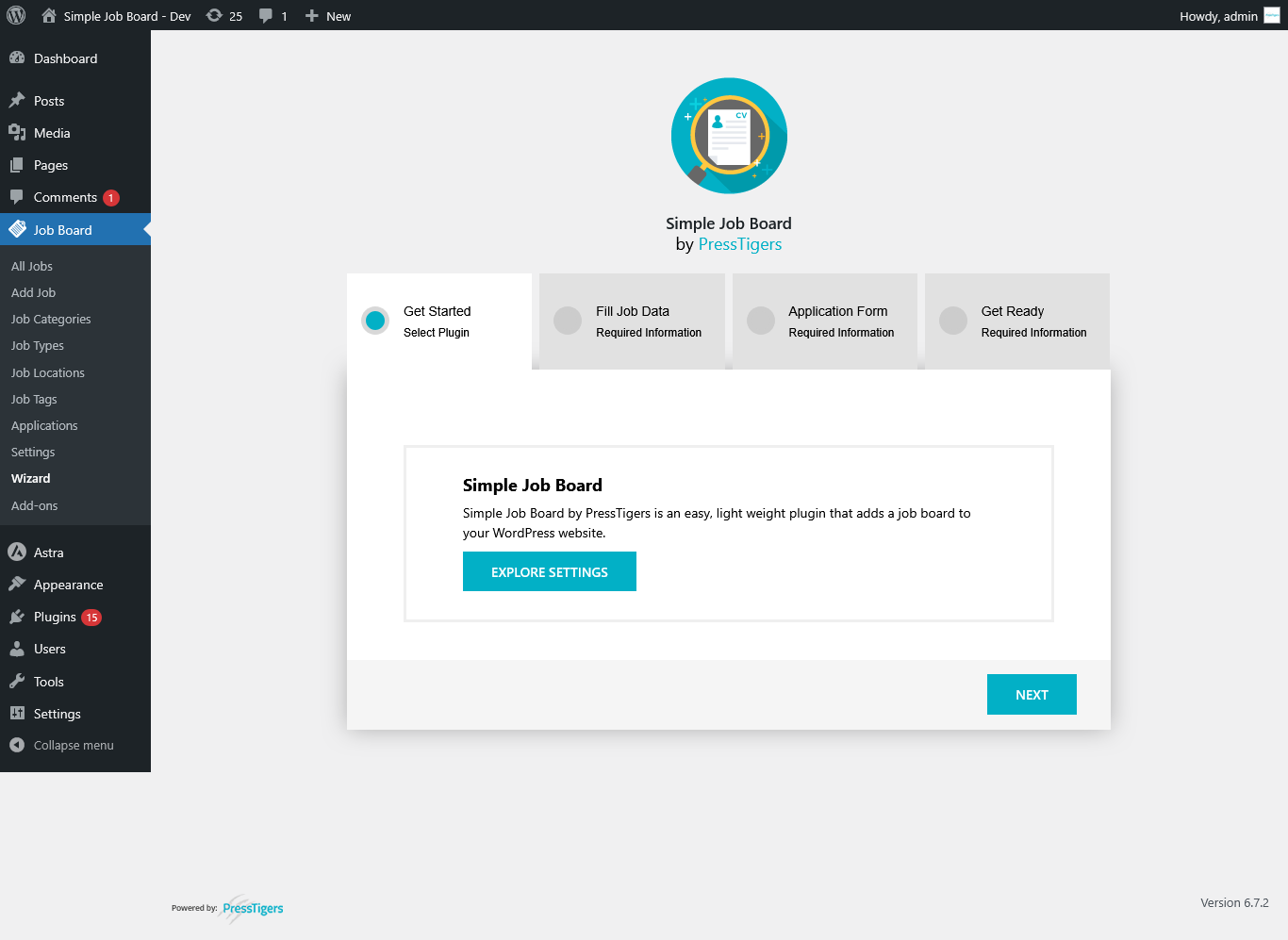
                <p>For quick setup, run wizard, navigate to Job Board admin menu and select "Wizard".</p>
                
                <div class="sub-tab-content" id="get-started">
                    <div class="image-container">
                        <img src="https://ptmp.presstigers.dev/wp-content/uploads/2025/03/wizard.png" alt="Wizard Setup">
                    </div>               
                </div>
                <div class="sub-tab-content" id="fill-data">
                    <h3>Fill Job Data</h3>
                    <p>On this tab, following items can be configured</p>
                    <ul>
                        <li>
                            Appearance
                            <ul>
                                <li>It allows you to switch between SJB provided layout and active theme inherited styles.</li>
                            </ul>
                        </li>
                        
                        <li>
                            Job Listing Contents
                            <ul>
                                <li>This section configure items to display in job post listing page.</li>
                            </ul>
                        </li>
                        
                        <li>
                            Theme Options
                            <ul>
                                <li>It has two options to select, "Classic Layout" and "Modern Layout".</li>
                            </ul>
                        </li>
                        
                        <li>
                            Job Post Content
                            <ul>
                                <li>This section configure items to display in job post detail page.</li>
                            </ul>
                        </li>
                        
                        <li>
                            Loader Image
                            <ul>
                                <li>Set a loader image that will be displayed while the job application is being submitted.</li>
                            </ul>
                        </li>
                    </ul> 
                </div>
                <div class="sub-tab-content" id="application-form">
                    <h3>Application Form</h3>
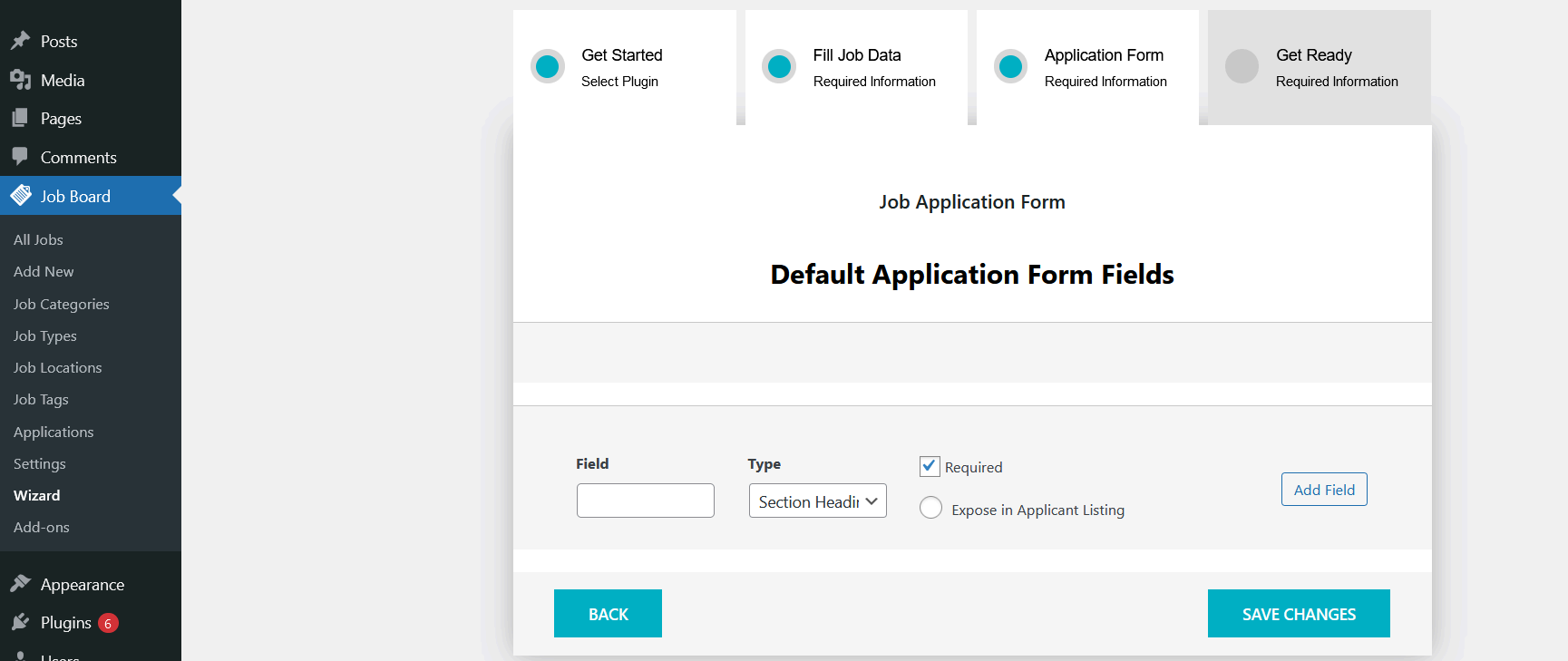
                    <p>This tab of wizard allows you to setup default application form fields for the jobs.</p>
                    <div class="image-container">
                        <img src="https://ptmp.presstigers.dev/wp-content/uploads/2025/02/application-form.png" alt="Wizard Setup">
                    </div> 
                </div>
                <div class="sub-tab-content" id="get-ready">
                    <h3>Get Ready</h3>
                    <p>After submission of Application Form tab, it will show you "Get Ready" tab that complete the wizard and on pressing "Finish" button it will take you to Simple Job Board "Settings".</p>
                </div>
            </section>
            <section id="settings">
                <h2>Settings</h2>
                <p>Manage general options, appearance, filters, email notifications, and more.</p>
                <div class="sub-tab-content" id="general">
                    <h3>General Options Tab</h3>
                    <div class="image-container">
                        <img src="https://ptmp.presstigers.dev/wp-content/uploads/2025/03/genearl.png" alt="Wizard Setup">
                    </div>
                    <ul>
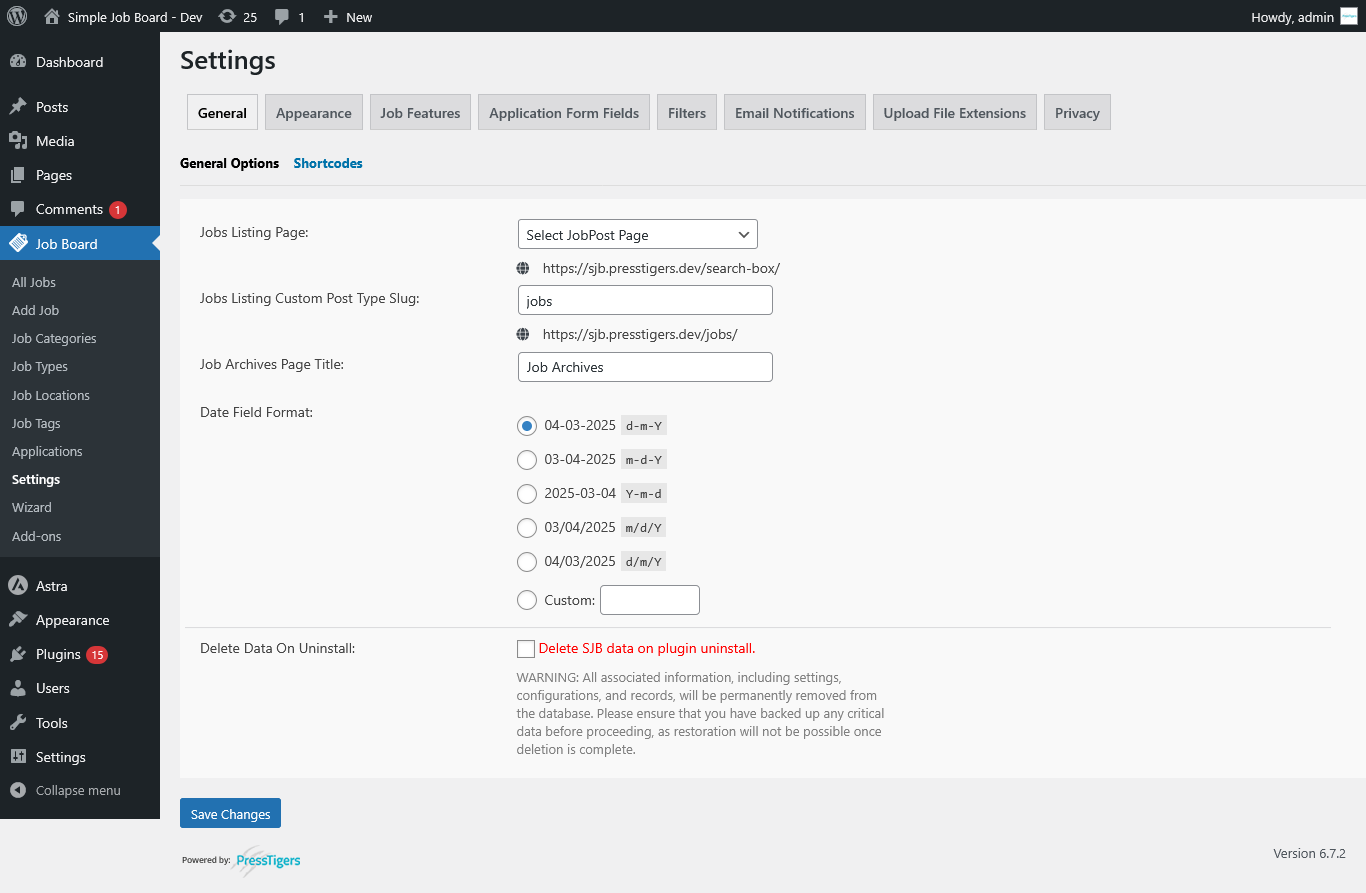
                        <li>On "General options" custom post slug can be configured in case it conflicts with other post types, and custom taxonomies.</li>
                        
                        <li>Job Archives Page is default job listing template that uses themes archive template. However it can be overridden with shortcode by creating a new page with the slug of your choice and inserting shortcode [jobposts] into text editor.</li>
                        
                        <li>Date format can be selected.</li>
                        
                        <li>Option to delete data on uninstall the plugin can be set.</li>
                        
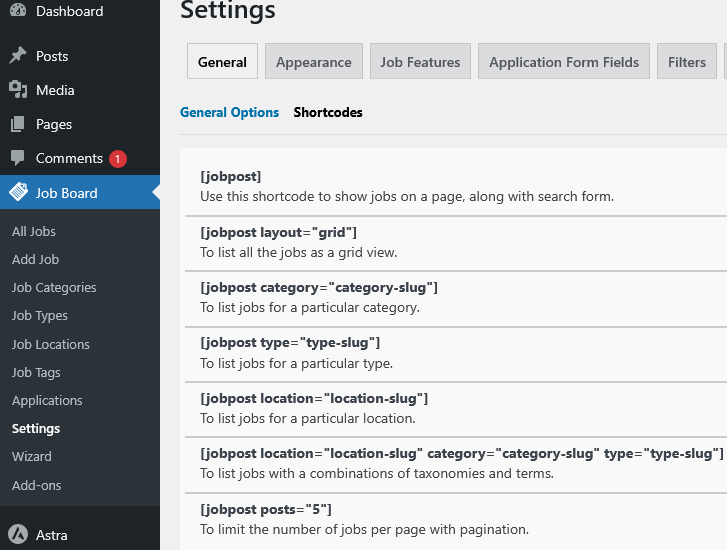
                        <li>A dedicated tab is added to list all the available shortcode.</li>
                    </ul>
                    <div class="image-container">
                        <img src="https://ptmp.presstigers.dev/wp-content/uploads/2025/03/shortcodes.png" alt="Wizard Setup">
                    </div>
                </div>
                <div class="sub-tab-content" id="appearance">
                    <h3>Appearances  Tab</h3>
                    <ul>
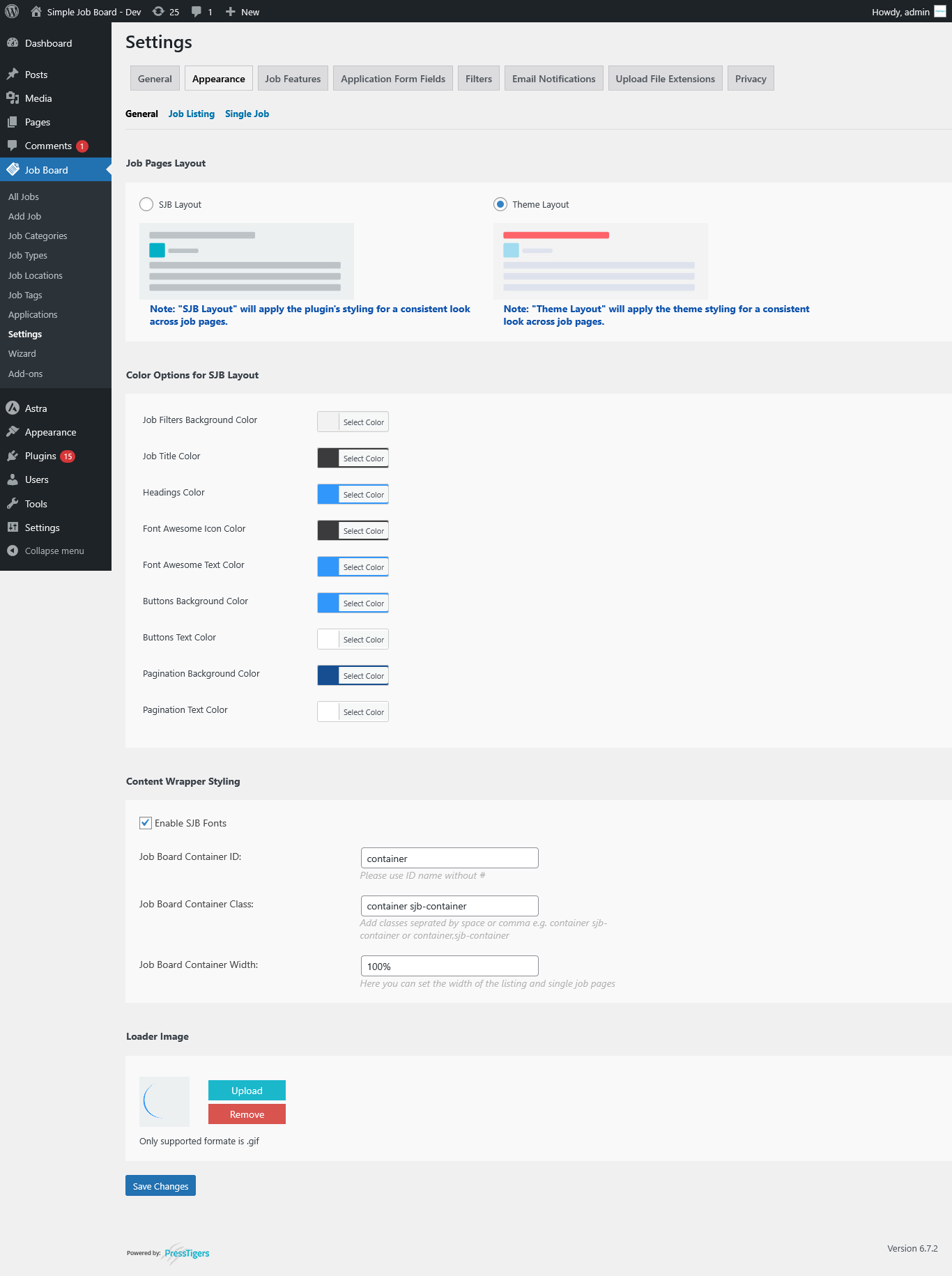
                        <li>General
                            <div class="image-container">
                                <img src="https://ptmp.presstigers.dev/wp-content/uploads/2025/03/appearance.png" alt="Wizard Setup">
                            </div>
                            <ul>
                                <li>It allows you to switch between SJB provided layout and active theme inherited styles.</li>
                                <li>This section allows settings of color scheme, fonts of text for buttons and titles.</li>
                                <li>This section allows settings for job post container and selectors.</li>
                                <li>The loader image accepts only gif and it is displays while the job is submitting.</li>
                            </ul>
                        </li>
                    </ul>
                    <ul>
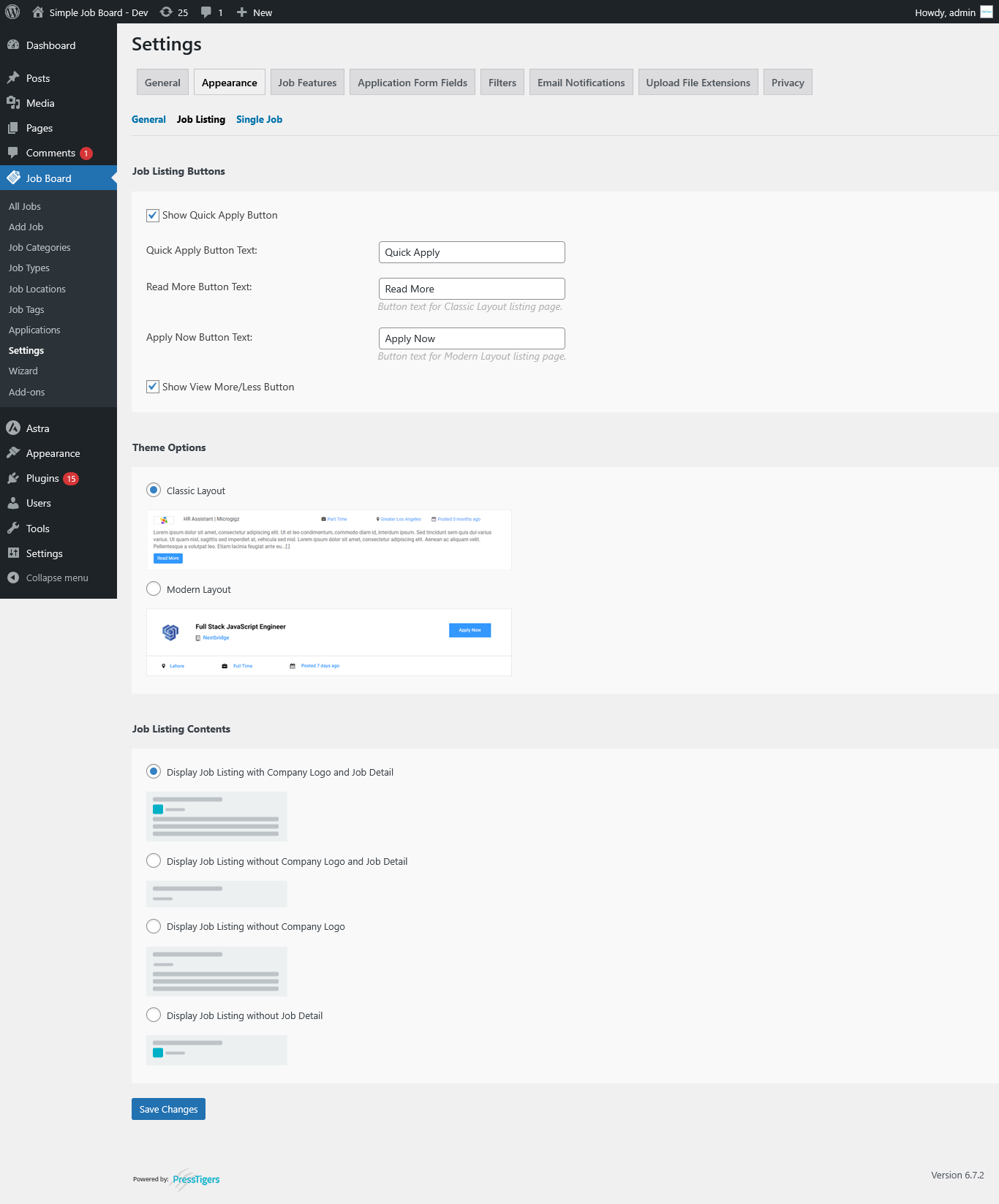
                        <li>Job Listing
                            <div class="image-container">
                                <img src="https://ptmp.presstigers.dev/wp-content/uploads/2025/03/listing.png" alt="Wizard Setup">
                            </div>
                            <ul>
                                <li>This section allows settings of job apply button label and text that displays on job application form.</li>
                                <li>This section allows selecting "Classic Layout" or "Modern Layout".</li>
                                <li>This section configure items to display in job post listing page.</li>
                            </ul>
                        </li>
                    </ul>
                    <ul>
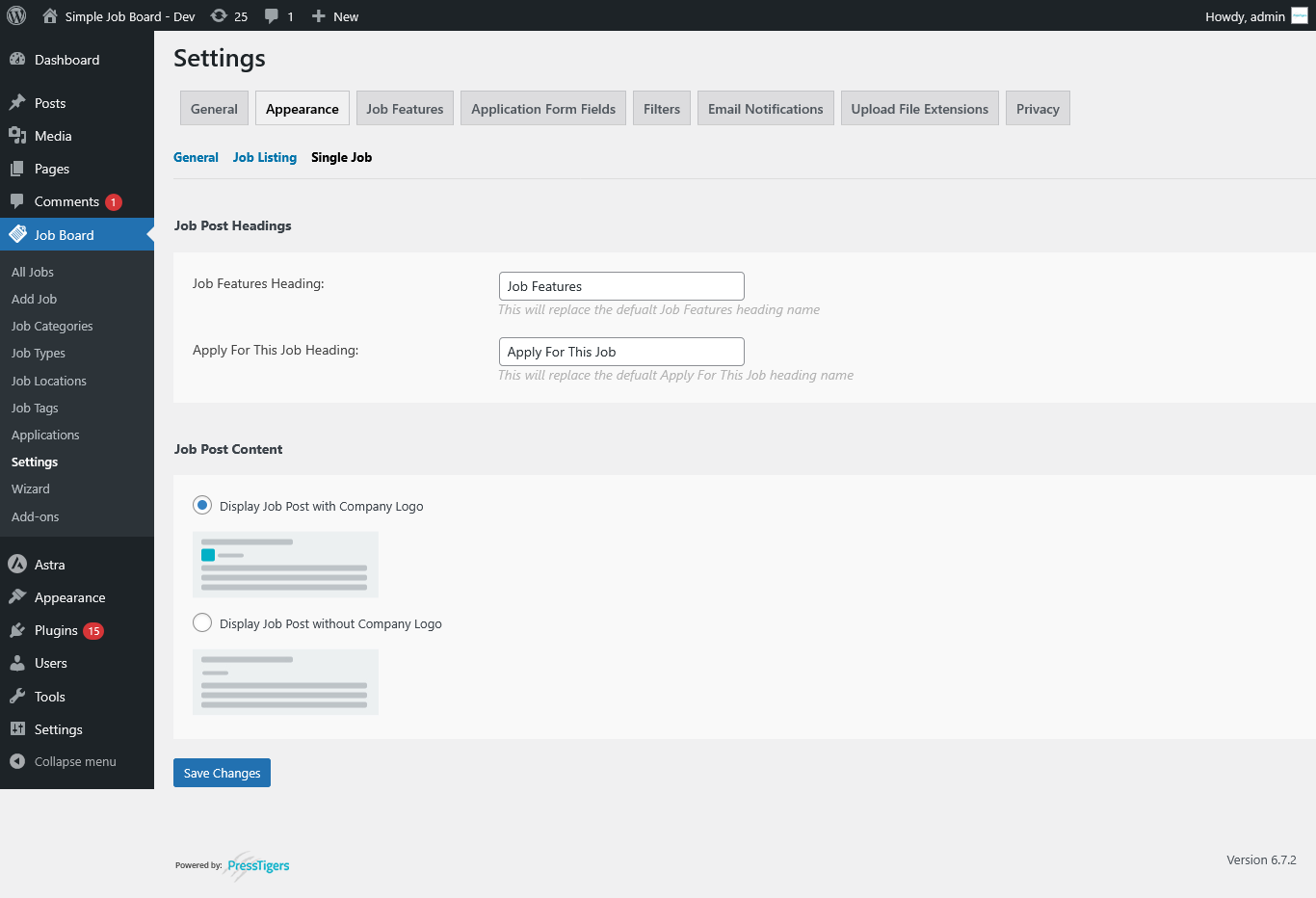
                        <li>Single Job
                            <div class="image-container">
                                <img src="https://ptmp.presstigers.dev/wp-content/uploads/2025/03/single-job.png" alt="Wizard Setup">
                            </div>
                            <ul>
                                <li>This section configure items to display in job post detail page.</li>
                            </ul>
                        </li>
                    </ul>
                </div>
                <div class="sub-tab-content" id="job-features">
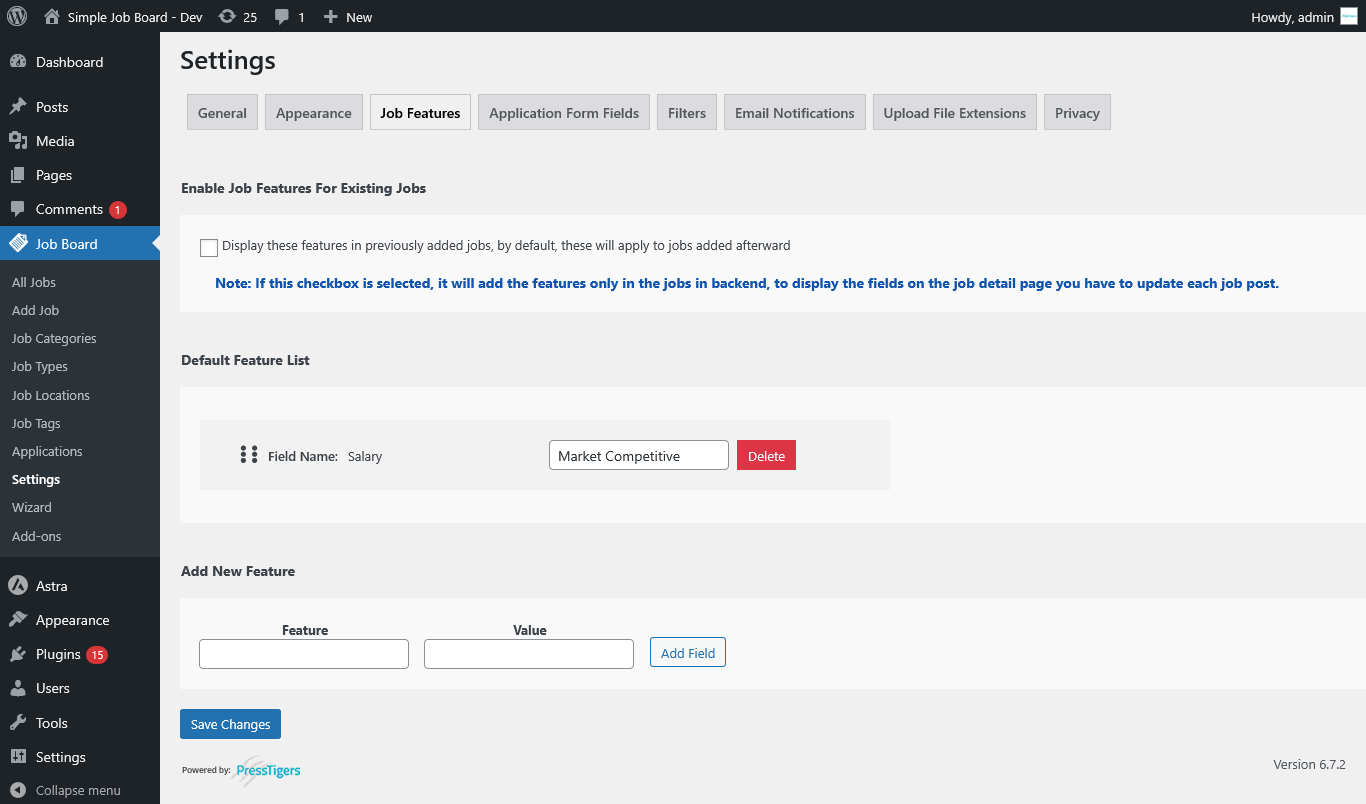
                    <h3>Job Features Tab</h3>
                    <p>It allows adding default job features that appear in each job create page</p>
                    <div class="image-container">
                        <img src="https://ptmp.presstigers.dev/wp-content/uploads/2025/03/feature.png" alt="Wizard Setup">
                    </div>
                </div>
                <div class="sub-tab-content" id="applicant-form-fields">
                    <h3>Applicant Form Fields Tab</h3>
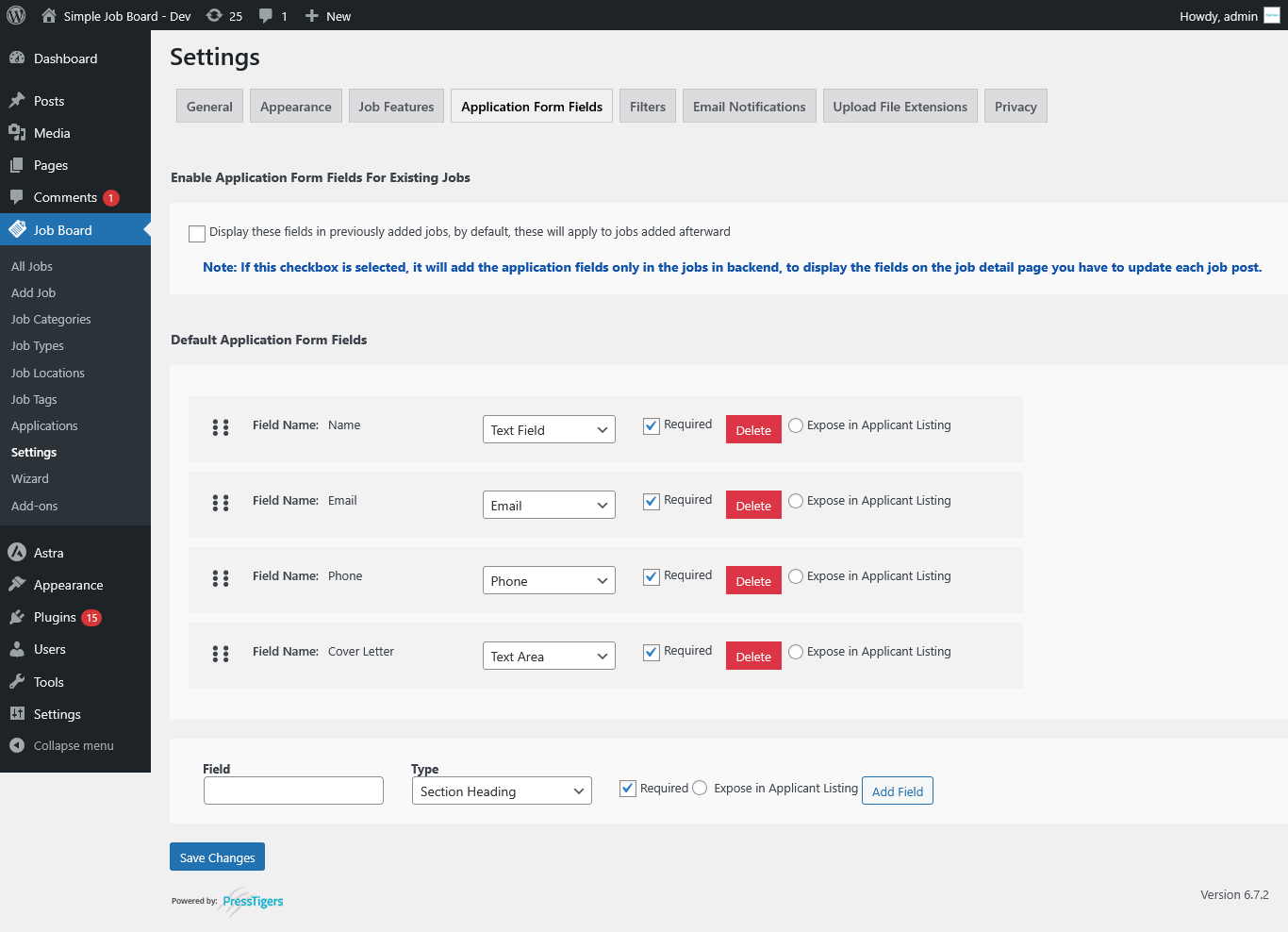
                    <ul>
                        <li>It allows adding default job application form fields that appear in each job application page.</li>
                        
                        <li>Fields can be set required.</li>
                        
                        <li>Fields can be set to display in applicants listing.</li>
                    </ul>
                    <div class="image-container">
                        <img src="https://ptmp.presstigers.dev/wp-content/uploads/2025/03/application-form-fields.png" alt="Wizard Setup">
                    </div>
                </div>
                <div class="sub-tab-content" id="filter">
                    <h3>Filters Tab</h3>
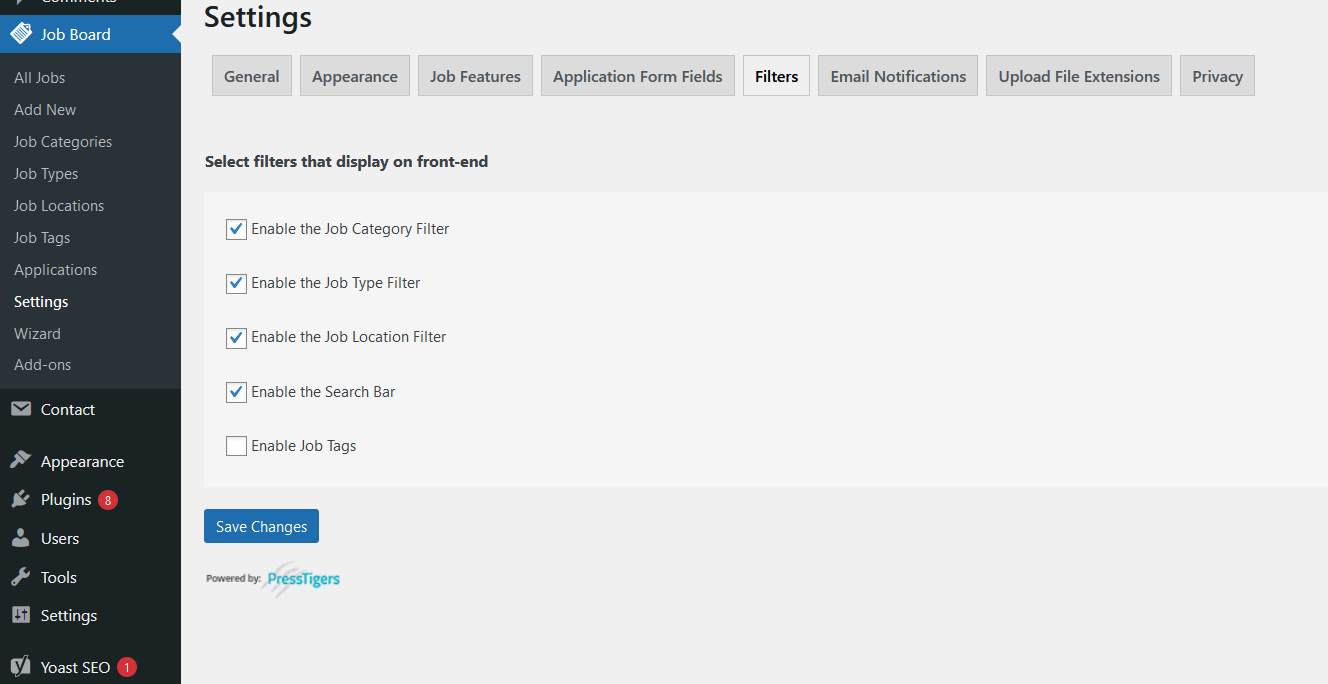
                    <p>It has different filters for the jobs application listing page to filter and search jobs. Below are the types of filter filters available. Enabling these filters will show the filters dropdowns on the frontend page of the job listing.</p>
                    <ul>
                        <li>Job Category Filter.</li>
                        
                        <li>Job Type Filter.</li>
                        
                        <li>Job Location Filter.</li>
    
                        <li>Search Bar.</li>
    
                        <li>Job Tags.</li>
                    </ul>
                    <div class="image-container">
                        <img src="https://ptmp.presstigers.dev/wp-content/uploads/2025/02/filters.png" alt="Wizard Setup">
                    </div>
                </div>
                <div class="sub-tab-content" id="email-notification">
                    <h3>Email Notification Tab</h3>
                    <div class="image-container">
                        <img src="https://ptmp.presstigers.dev/wp-content/uploads/2025/03/email-notification.png" alt="Wizard Setup">
                    </div>
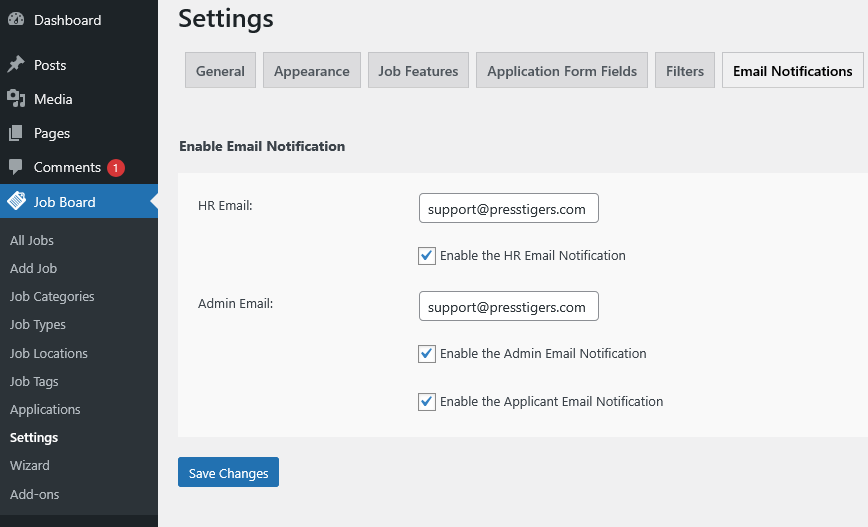
                    <ul>
                        <li>Set email ids will receive notifications for the job applied.</li>
                        
                        <li>Email templates can be used to receive customized notifications.</li>
                    </ul>
                </div>
                <div class="sub-tab-content" id="update-file-extension">
                    <h3>Update File Extensions Tab</h3>
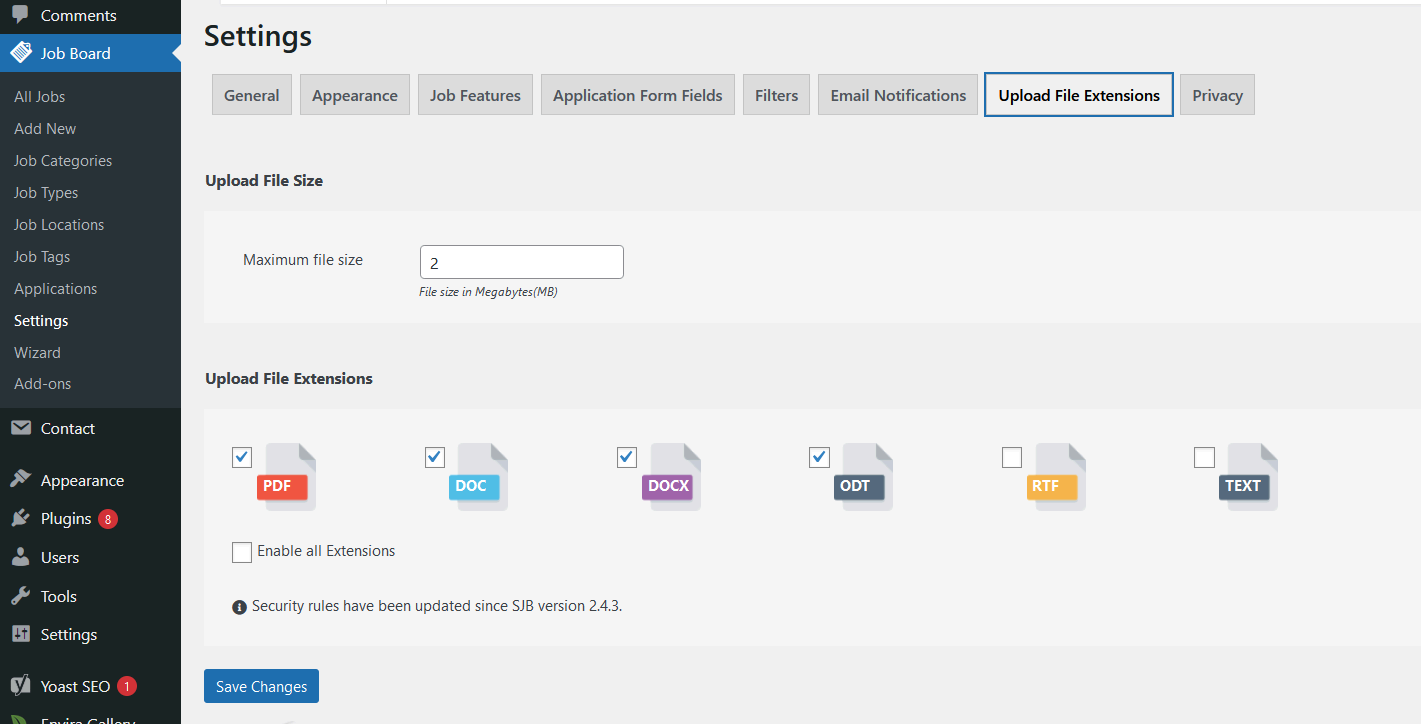
                    <p>It has the option to set the limit of application attachment size of files uploaded by applicants.
                        Also allowed file types can be selected. 
                    </p>
                    <div class="image-container">
                        <img src="https://ptmp.presstigers.dev/wp-content/uploads/2025/02/upload.png" alt="Wizard Setup">
                    </div>
                </div>
                <div class="sub-tab-content" id="privacy">
                    <h3>Privacy Tab</h3>
                    <p>Manage privacy settings for job applications and data storage.</p>
                    <ul>
                        <li>Privacy Policy
                            <ul>
                                <li>
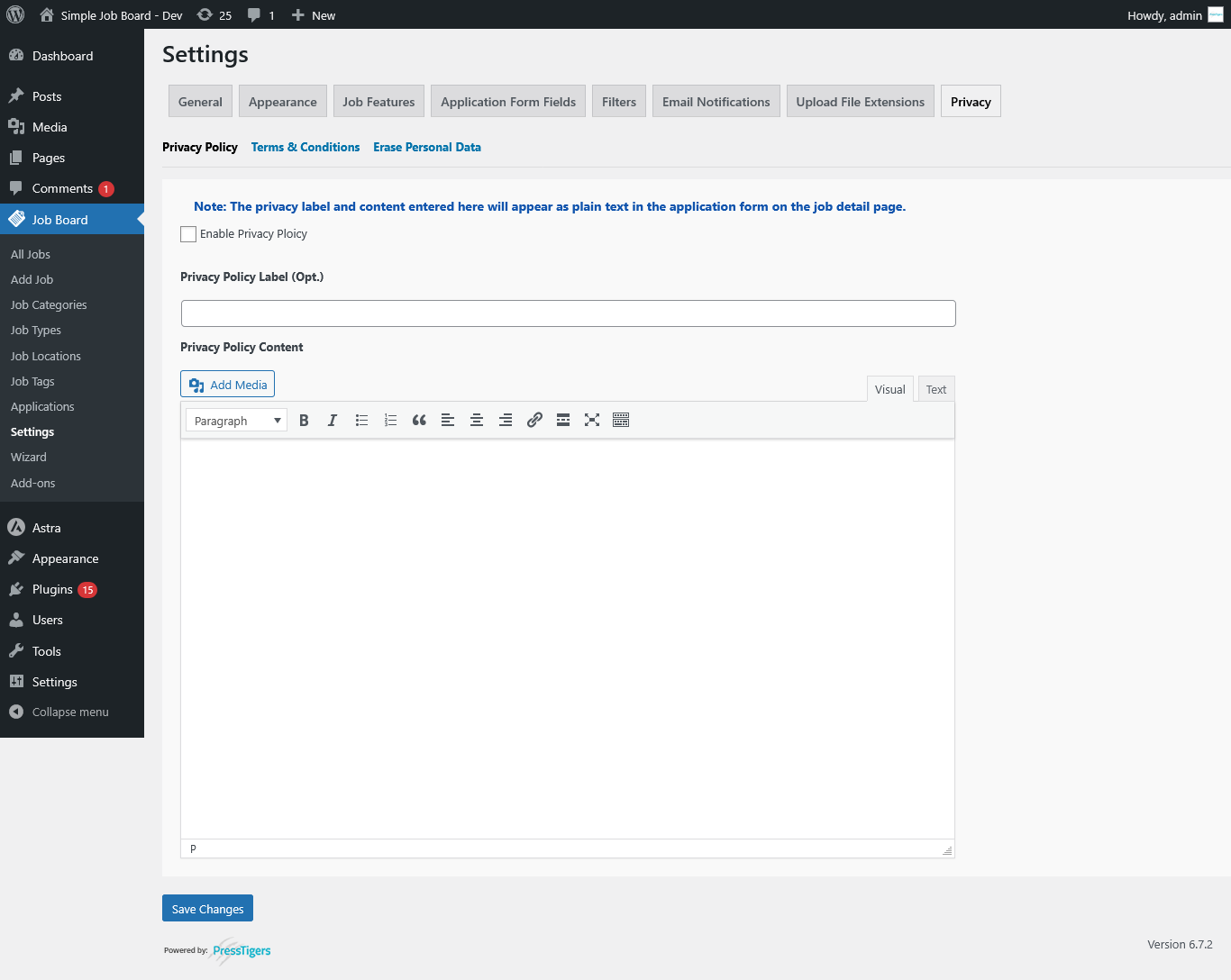
                                    Privacy Policy allows enable privacy policy checkbox to show on job details page.
                                    <div class="image-container">
                                        <img src="https://ptmp.presstigers.dev/wp-content/uploads/2025/03/privacy-feature.png" alt="Wizard Setup">
                                    </div>
                                </li>
                            </ul>
                        </li>
                        
                        <li>Terms & Conditions
                            <ul>
                                <li>
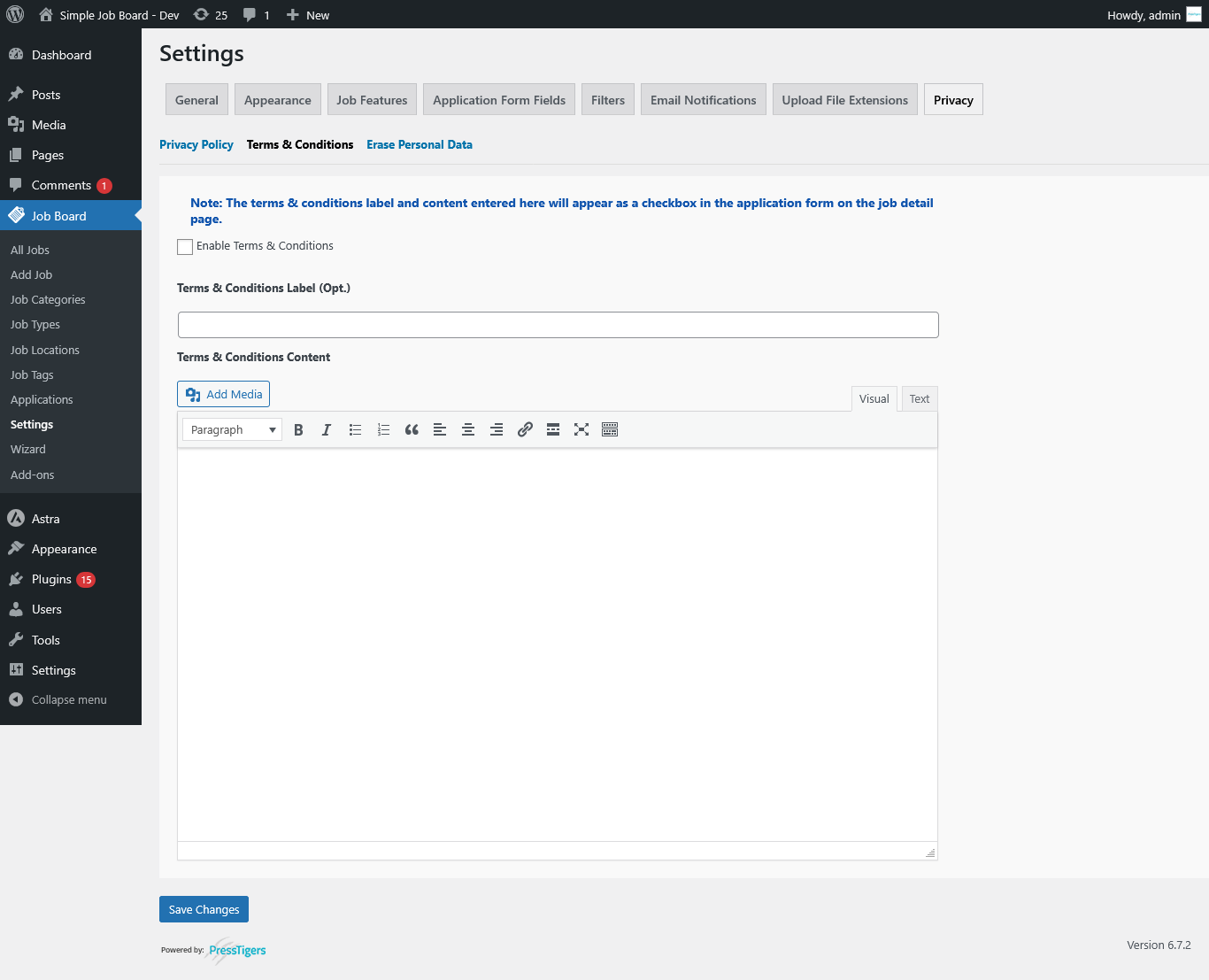
                                    Terms and conditions has two sections one is for label text purposes that will display before the actual privacy text that is set in the "Privacy Policy Content" section.
                                    <div class="image-container">
                                        <img src="https://ptmp.presstigers.dev/wp-content/uploads/2025/03/terms.png" alt="Wizard Setup">
                                    </div>
                                </li>
                            </ul>
                        </li>
                        <li>Erase Personal Data
                            <ul>
                                <li>
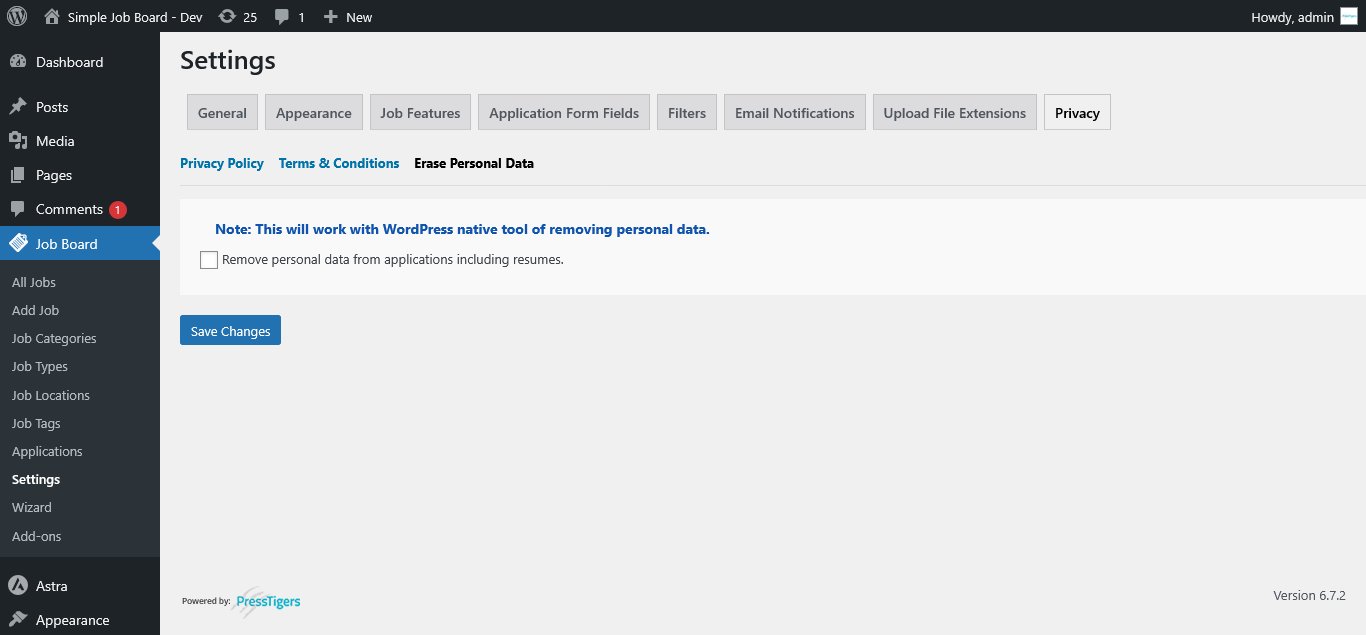
                                    It Also has "Remove Personal Data Settings" settings for the applicant data submitted.
                                    <div class="image-container">
                                        <img src="https://ptmp.presstigers.dev/wp-content/uploads/2025/03/erase.png" alt="Wizard Setup">
                                    </div>
                                </li>
                            </ul>
                        </li>
                    </ul>
                </div>
            </section>
            <section id="job-posting">
                <h2>Job Posting</h2>
                <p>Create and manage job posts with categories, and application forms.</p>
                <div class="sub-tab-content" id="add-job">
                    <h3>Add a New Job</h3>
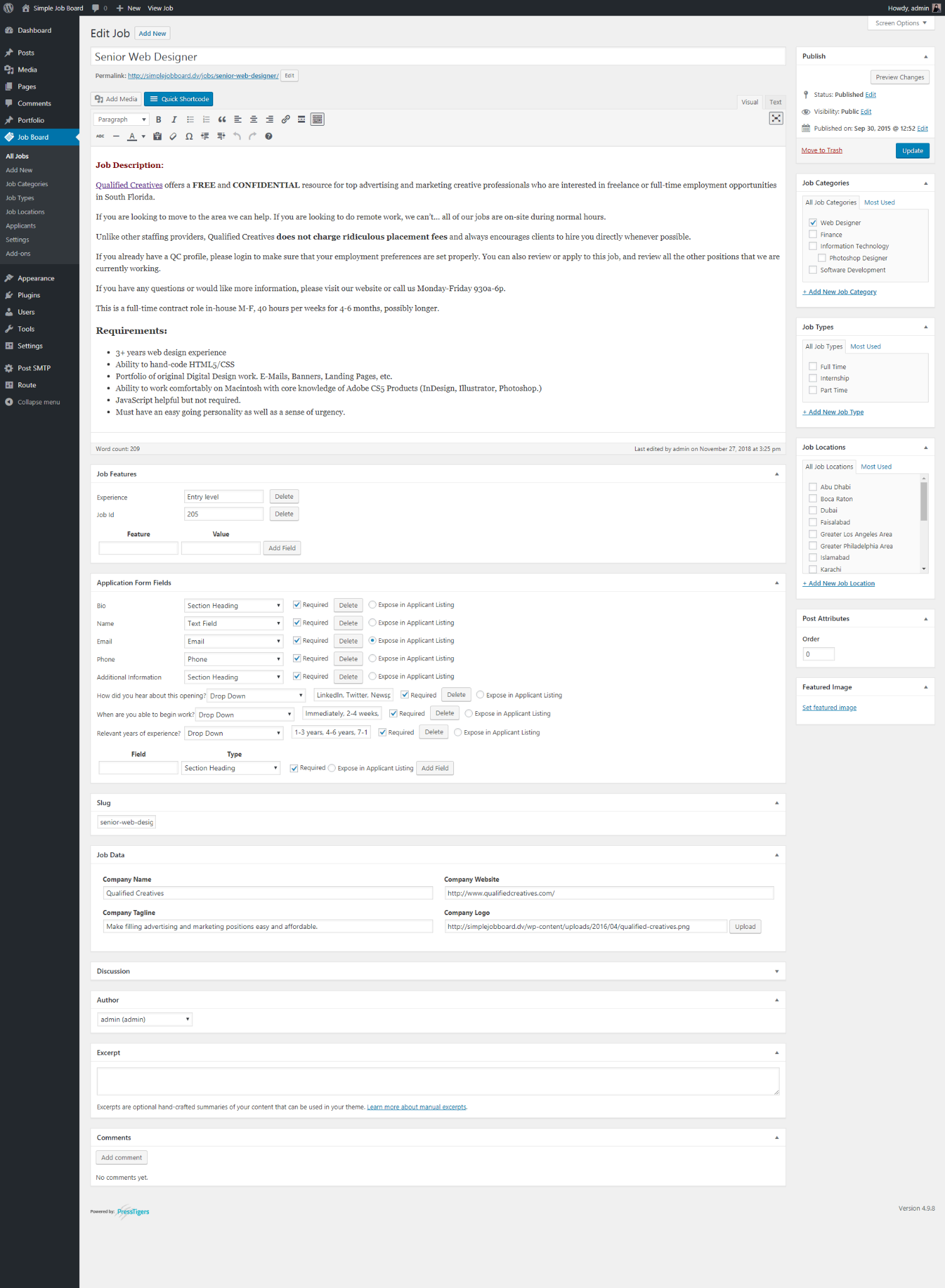
                    <p>New job form has post capabilities, job post tags and taxonomies  and custom fields that can be repeated to enter as many as needed.</p>
                    <ul>
                        <li>Along with default job features from global settings, Add Job form has its own features add/remove options as well.</li>
                        
                        <li>Under the Application form fields, different types of repeatable fields can be added that will display on application form.</li>
                        
                        <li>On the right side column, all the post tags and taxonomies are available to set.</li>
                    </ul>
                    <div class="image-container">
                        <img src="https://ptmp.presstigers.dev/wp-content/uploads/2025/02/add-job.png" alt="Wizard Setup">
                    </div>
                </div>
            </section>
            <section id="job-applications">
                <h2>Job Applications</h2>
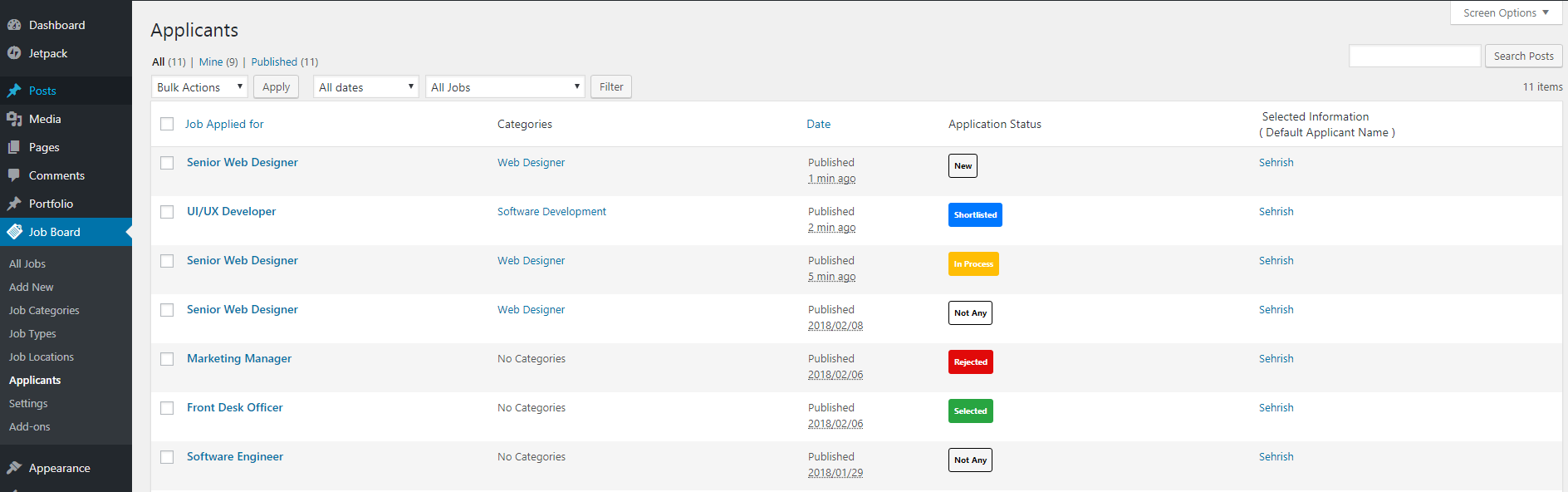
                <p>Applications submitted against jobs can be view at All Jobs > Job Applications column.</p>
                <div class="image-container">
                    <img src="https://ptmp.presstigers.dev/wp-content/uploads/2025/02/jobapp2.png" alt="Wizard Setup">
                </div>
                <p>Also the Application menu list all the the applications and can be filtered by job 
                    Submitted CV can be downloaded from the link under Action column.
                </p>
                <div class="sub-tab-content" id="single-app">
                    <h3>Single Application Edit</h3>
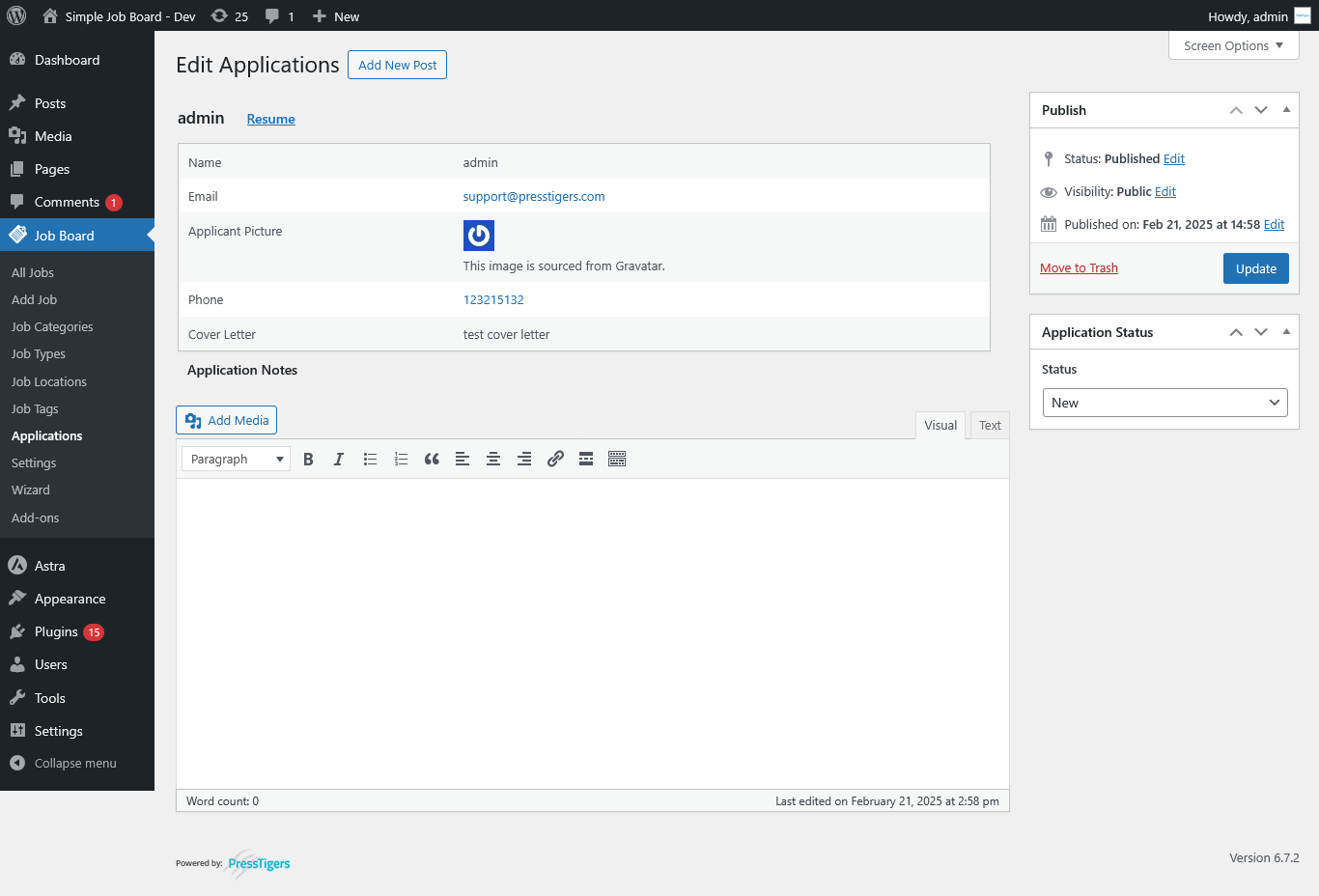
                    <p>On edit application form, applicant status can be in Application Status meta box in right column
                        Application notes can be added for record purposes if needed.
                    </p>
                    <div class="image-container">
                        <img src="https://ptmp.presstigers.dev/wp-content/uploads/2025/03/application-edit.png" alt="Wizard Setup">
                    </div>
                </div>
            </section>
            <section id="job-filters">
                <h2>Job Categories, Types, and Locations</h2>
                <p>Define categories, types, and locations for job listings.</p>
                <div class="sub-tab-content" id="job-cat">
                    <h3>Job Categories</h3>
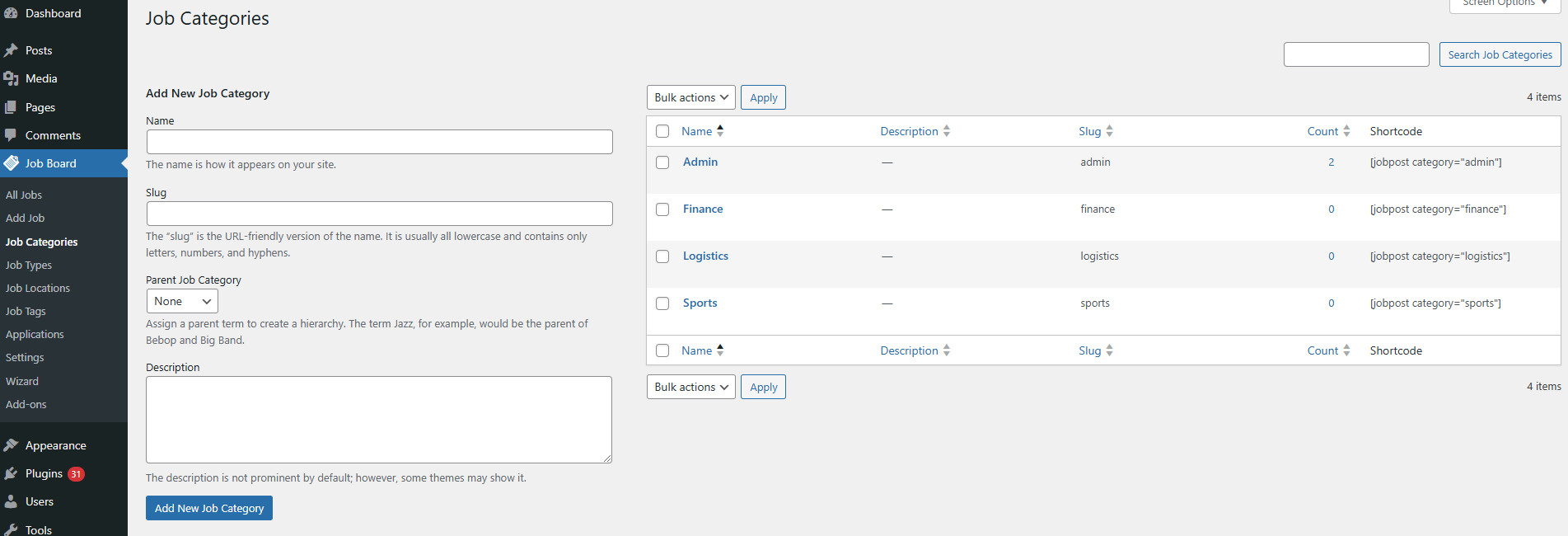
                    <p>You can add the categories for the jobs from Job Board > Job Categories.</p>
                    <div class="image-container">
                        <img src="https://ptmp.presstigers.dev/wp-content/uploads/2025/02/cat.png" alt="Wizard Setup">
                    </div>
                    <p>You can display jobs for the specific category in any page using the shortcode [jobpost category="category-slug"].</p>
                </div>
                <div class="sub-tab-content" id="job-type">
                    <h3>Job Types</h3>
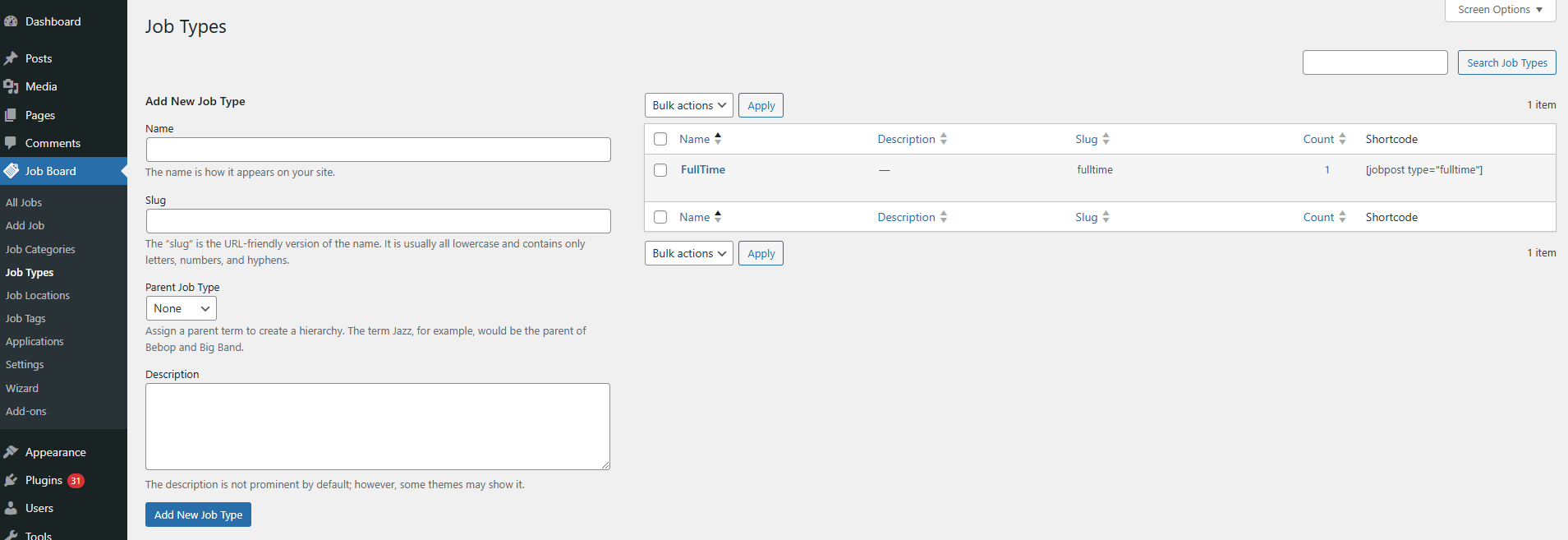
                    <p>You can add the types for the jobs from Job Board > Job Types.</p>
                    <div class="image-container">
                        <img src="https://ptmp.presstigers.dev/wp-content/uploads/2025/02/type.png" alt="Wizard Setup">
                    </div>
                    <p>You can display jobs for the specific types in any page using the shortcode [jobpost type="type-slug"].</p>
                </div>
                <div class="sub-tab-content" id="job-loc">
                    <h3>Job Locations</h3>
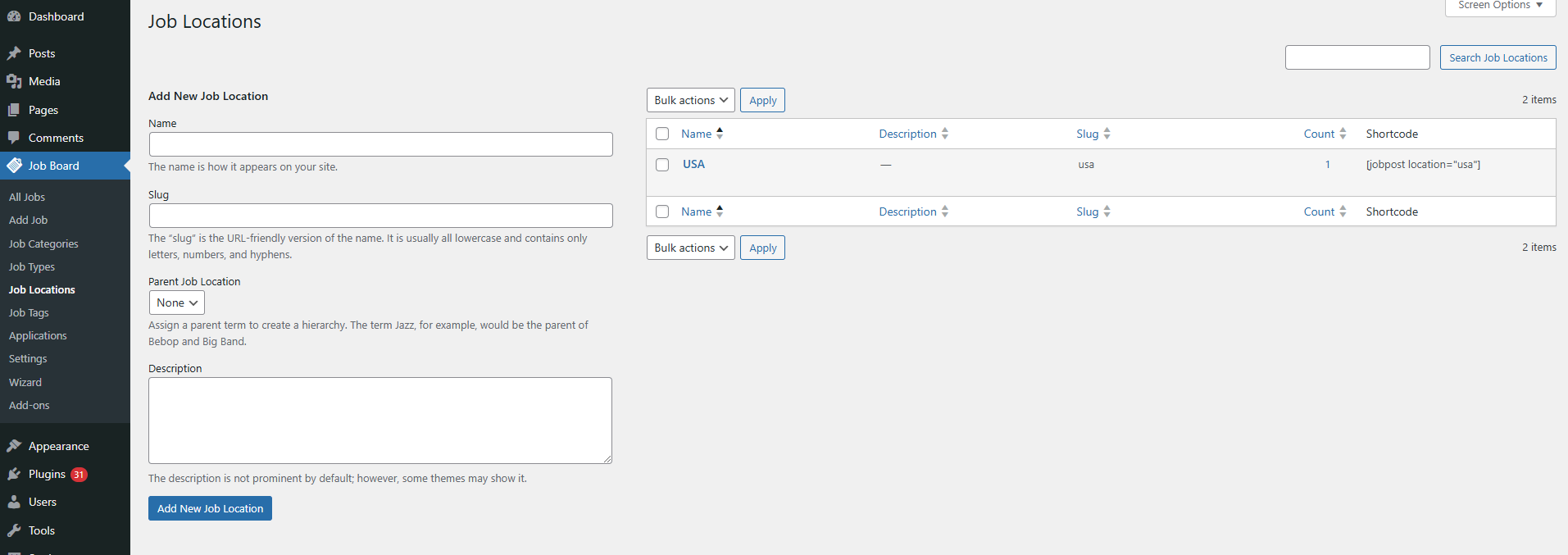
                    <p>You can add the locations for the jobs from Job Board > Job Locations.</p>
                    <div class="image-container">
                        <img src="https://ptmp.presstigers.dev/wp-content/uploads/2025/02/loc.png" alt="Wizard Setup">
                    </div>
                    <p>You can display jobs for the specific locations in any page using the shortcode [jobpost location="location-slug"].</p>
                </div>
            </section>
            <section id="frontend">
                <h2>Frontend</h2>
                <p>Manage job listings, detail pages, and search filters.</p>
                <div class="sub-tab-content" id="job-listing">
                    <h3>Jobs Listing page</h3>
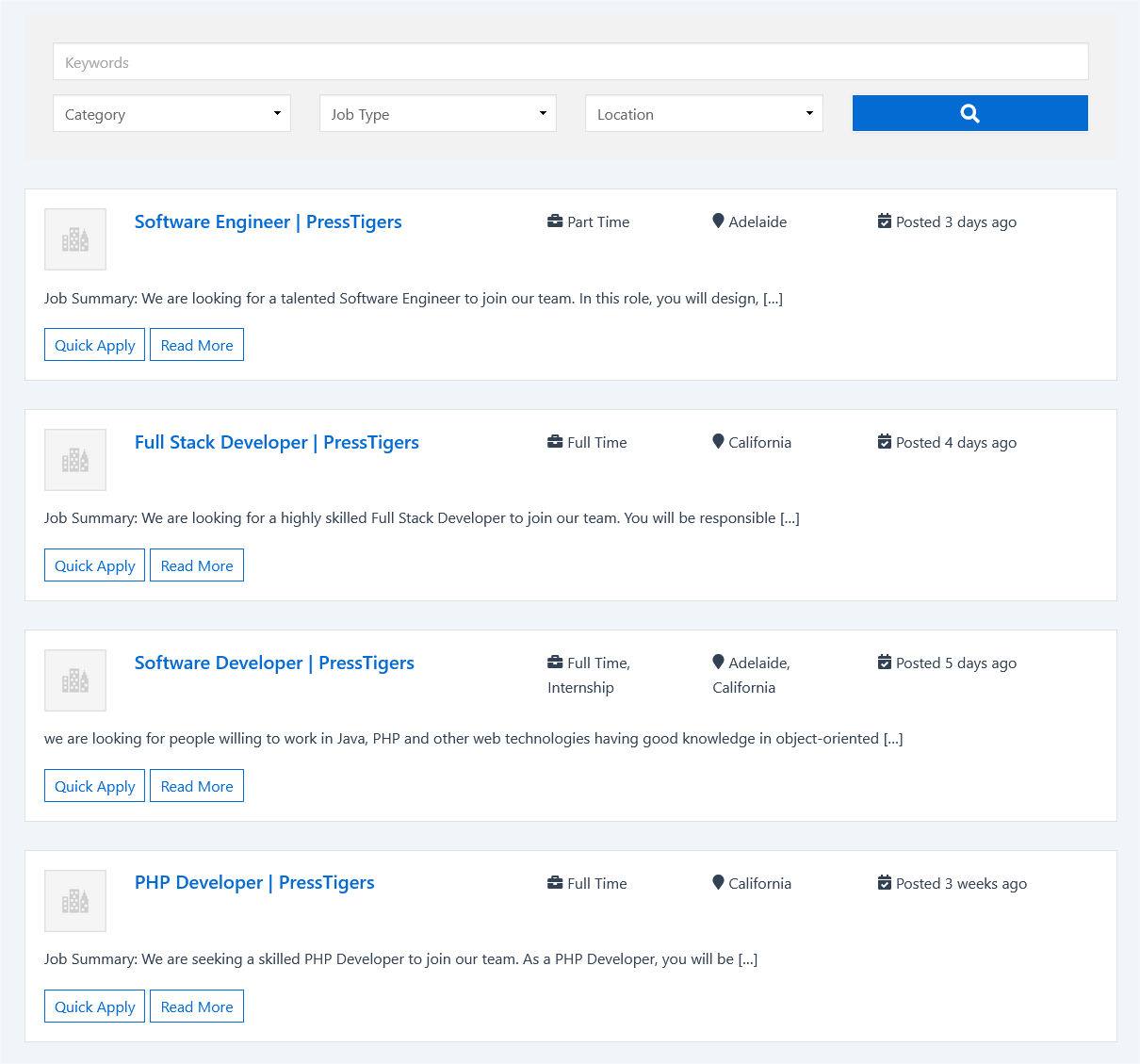
                    <p>By default /jobs post lists all the jobs using the default achieve template. However the url can can be updated by creating a new page with slug of your choice and inserting shortcode [jobposts].</p>
                    <p>On the jobs listing page, jobs search filters available to search by Keyword, Job Category, Job Type, and Job Location. Please note these filters will show if at least one entry is done in admin for the given filters.</p>
                    <div class="image-container">
                        <img src="https://ptmp.presstigers.dev/wp-content/uploads/2025/03/front-listing.png" alt="Wizard Setup">
                    </div>
                </div>
                <div class="sub-tab-content" id="job-detail">
                    <h3>Job Detail Page</h3>
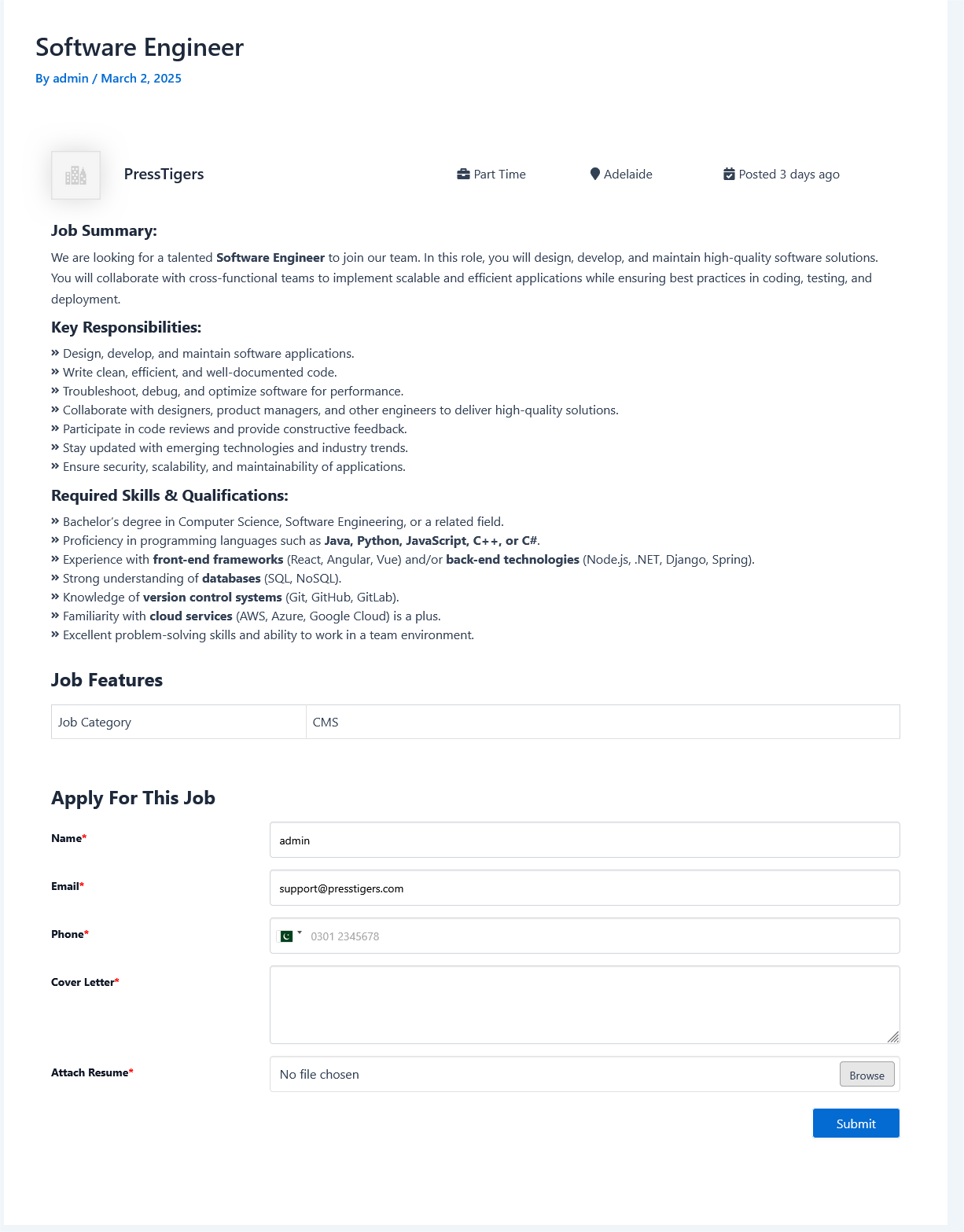
                    <p>Job detail page displays the form for submitting a job application. Candidates can upload resumes with allowed file types by admins.</p>
                    <p>These submitted applications are displayed against job in the admin where admins can update applications status to shortlist candidates.</p>
                    <div class="image-container">
                        <img src="https://ptmp.presstigers.dev/wp-content/uploads/2025/03/job-details.png" alt="Wizard Setup">
                    </div>
                </div>
            </section>
            <section id="shortcodes">
                <h2>Shortcodes</h2>
                <p>Use shortcodes to display job listings and filters dynamically.</p>
                <div class="sub-tab-content" id="listing-shortcode">
                    <h3>Job Listing</h3>
                    <p>Show job listings on the front-end using [jobpost].</p>
                </div>
                <div class="sub-tab-content" id="limit-shortcode">
                    <h3>Limit Jobs</h3>
                    <p>show latest jobs on front-end with pagination [jobpost posts="5"].</p>
                </div>
                <div class="sub-tab-content" id="grid-shortcode">
                    <h3>Grid View</h3>
                    <p>Show job listing grid view using a shortcode [jobpost layout="grid"].</p>
                </div>
                <div class="sub-tab-content" id="cat-shortcode">
                    <h3>Specific Category Listing</h3>
                    <p>Show job listings for particular "Category" [jobpost category="category-slug"].</p>
                </div>
                <div class="sub-tab-content" id="type-shortcode">
                    <h3>Specific Type Listing</h3>
                    <p>Show job listings for particular "Type" [jobpost type="type-slug"].</p>
                </div>
                <div class="sub-tab-content" id="loc-shortcode">
                    <h3>Specific Location Listing</h3>
                    <p>Show job listings for particular "Location" [jobpost location="location-slug"].</p>
                </div>
                <div class="sub-tab-content" id="combo-shortcode">
                    <h3>Combination</h3>
                    <p>Using combination for various shortcodes to display job listings [jobpost location="location-slug" category="category-slug" type="type-slug"].</p>
                </div>
            </section>
            <section id="contact">
                 <h2>Send Us Your Query</h2>
                <?php echo do_shortcode('[wpforms id="63620"]'); ?>
            </section>
            <section id="add-ons">
                <div class="addons-container">
                    <h2>Available Add-ons</h2>
                    <div class="addons-grid">
                        <div class="addon">
                            <!-- <img src="addon1.jpg" alt="Addon 1"> -->
                            <h3>Addon Name 1</h3>
                            <!-- <p>Short description of the addon goes here.</p> -->
                            <a href="#" class="addon-link">Learn More</a>
                        </div>
                        <div class="addon">
                            <!-- <img src="addon2.jpg" alt="Addon 2"> -->
                            <h3>Addon Name 2</h3>
                            <!-- <p>Another description for the second addon.</p> -->
                            <a href="#" class="addon-link">Learn More</a>
                        </div>
                        <div class="addon">
                            <!-- <img src="addon3.jpg" alt="Addon 3"> -->
                            <h3>Addon Name 3</h3>
                            <!-- <p>Brief details about this addon.</p> -->
                            <a href="#" class="addon-link">Learn More</a>
                        </div>
                    </div>
                </div>
            </section>
        </div>
    </div>
    <?php get_footer(); ?>

    <script>
        // Function to toggle sub-tabs visibility
        function toggleSubTabs(parentTabId, subTabsId) {
            const parentTab = document.querySelector(`.sidebar a[href="#${parentTabId}"]`);
            const subTabs = document.getElementById(subTabsId);

            parentTab.addEventListener('click', (e) => {
                e.preventDefault();
                document.querySelector(parentTab.getAttribute('href')).scrollIntoView({
                    behavior: 'smooth'
                });

                // Close all other sub-tabs
                document.querySelectorAll('.sub-tabs').forEach(tab => {
                    if (tab.id !== subTabsId) tab.style.display = 'none';
                });

                // Toggle current sub-tabs
                subTabs.style.display = subTabs.style.display === 'block' ? 'none' : 'block';
            });
        }
        
        // Initialize accordion behavior for the "Settings" tab
        toggleSubTabs('settings', 'settings-sub-tabs');
        toggleSubTabs('job-posting', 'job-post-sub-tabs');
        toggleSubTabs('wizard', 'wizard-sub-tabs');
        toggleSubTabs('job-applications', 'applications-sub-tabs');
        toggleSubTabs('job-filters', 'filters-sub-tabs');
        toggleSubTabs('frontend', 'frontend-sub-tabs');
        toggleSubTabs('shortcodes', 'shortcodes-sub-tabs');
        // Smooth scrolling and active tab highlighting
        document.querySelectorAll('.sidebar a').forEach(anchor => {
            anchor.addEventListener('click', function(e) {
                e.preventDefault();
                document.querySelector(this.getAttribute('href')).scrollIntoView({
                    behavior: 'smooth'
                });

                // Close all sub-tabs when clicking on any tab except "Settings"
                if (!this.getAttribute('href').includes('settings')) {
                    document.querySelectorAll('.sub-tabs').forEach(tab => tab.style.display = 'none');
                }
            });
        });

        document.querySelector('.right-content').addEventListener('scroll', () => {
            let fromTop = document.querySelector('.right-content').scrollTop + 160;

            // Loop through sections inside .right-content
        document.querySelectorAll('.right-content section').forEach(section => {
        let link = document.querySelector(`.sidebar a[href="#${section.id}"]`);

        if (section.offsetTop <= fromTop && section.offsetTop + section.offsetHeight > fromTop) {
            document.querySelectorAll('.sidebar a').forEach(a => a.classList.remove('active'));
            if (link) link.classList.add('active');

            // Open sub-tabs based on section visibility
            let subTabMapping = {
                'settings': 'settings-sub-tabs',
                'job-posting': 'job-post-sub-tabs',
                'wizard': 'wizard-sub-tabs',
                'job-applications': 'applications-sub-tabs',
                'job-filters': 'filters-sub-tabs',
                'frontend': 'frontend-sub-tabs',
                'shortcodes': 'shortcodes-sub-tabs'
            };

            Object.keys(subTabMapping).forEach(key => {
                let subTab = document.getElementById(subTabMapping[key]);
                if (subTab) {
                    subTab.style.display = section.id === key ? 'block' : 'none';
                }
            });
        }
        });

            // Highlight sub-tabs based on scroll position
            document.querySelectorAll('.sub-tab-content').forEach(tab => {
                let subTabLink = document.querySelector(`.sub-tabs a[href="#${tab.id}"]`);
                if (tab.offsetTop <= fromTop && tab.offsetTop + tab.offsetHeight > fromTop) {
                    document.querySelectorAll('.sub-tabs a').forEach(a => a.classList.remove('active'));
                    subTabLink.classList.add('active');
                }
            });
        });
    </script>